
Partner Fleet MCP server
Bring your ecosystem into your AI tools
The Partner Fleet MCP server connects Claude, ChatGPT, and other AI assistants to your Partner Fleet account. Nothing goes live until your team approves it.
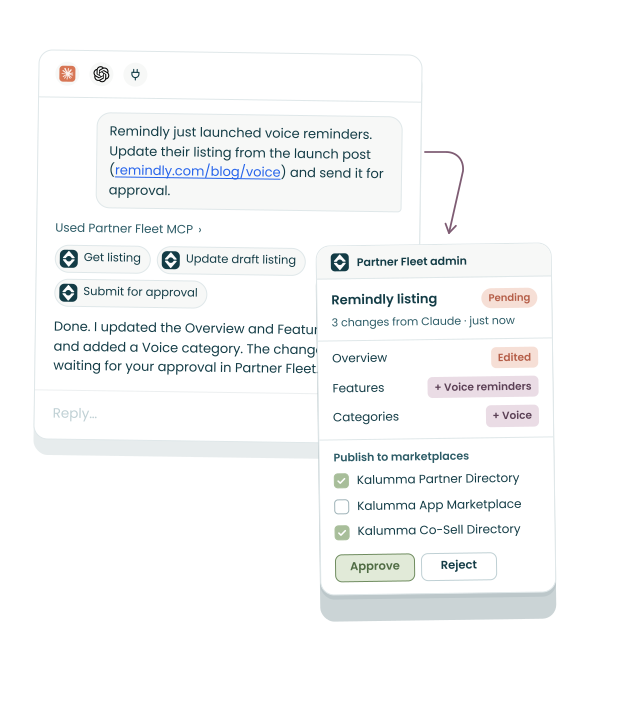
What can you do with the Partner Fleet MCP?
Your team works on listings and partner applications from the AI tool they already use, and every change waits for approval in Partner Fleet.
Partnerships
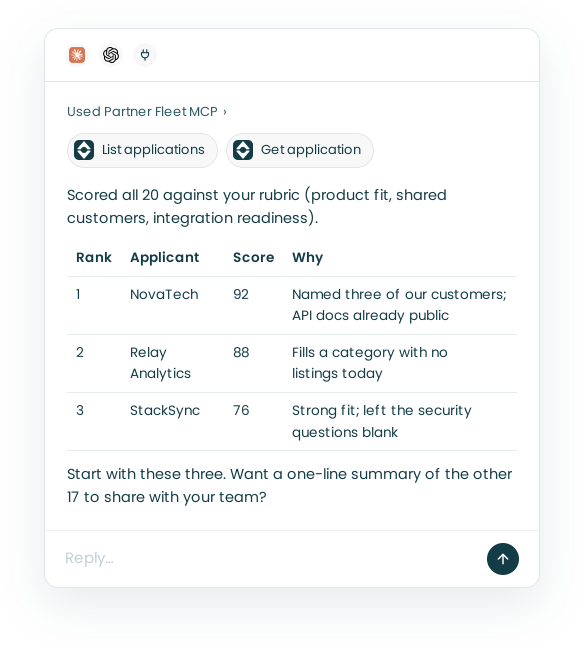
Decide which partner applications to prioritize
Give your AI tool your partner criteria or a scoring rubric. Using the Partner Fleet MCP, it reads every application waiting for review, scores each one on the answers they provided, and tells you which to prioritize.
There are 20 partner applications waiting for review. Score them against my rubric and tell me which three to look at first.
Partnerships
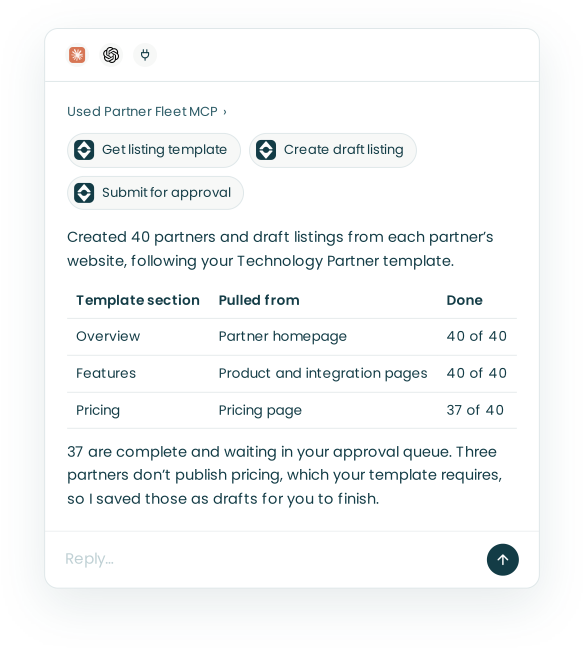
Draft new listings and keep the rest current
Give your AI tool a list of your partners, their websites, or any notes you have. Using the Partner Fleet MCP, it adds each partner and drafts their listing in your template. Complete drafts go to your approval queue, and it flags anything missing instead of guessing.
Create a listing for every partner in this CSV, using each partner’s domain as the source of truth. Use the Technology Partner template.
Partnerships
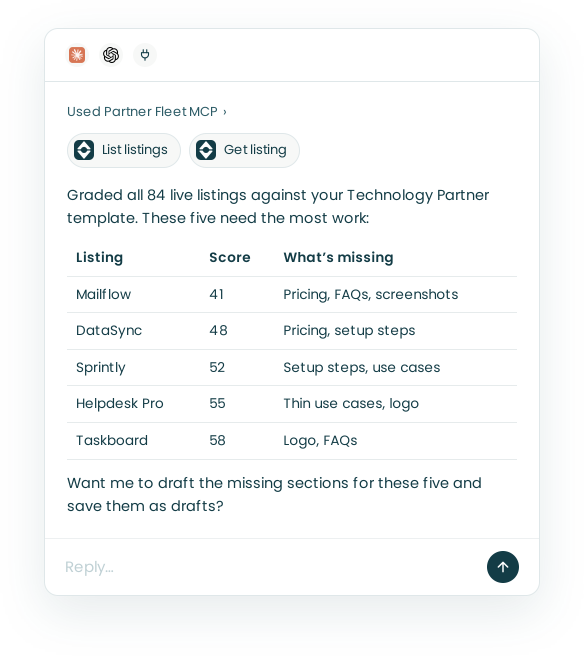
Find listings with missing or outdated content
Ask your AI tool to grade your listings against your template. Using the Partner Fleet MCP, it reads every listing, flags missing sections, thin copy, outdated details, or anything else you ask it to check, and ranks what to fix first.
Grade every listing against my Technology Partner template and rank the five that need the most work.
Sales and customer success
Find the right partner for a deal
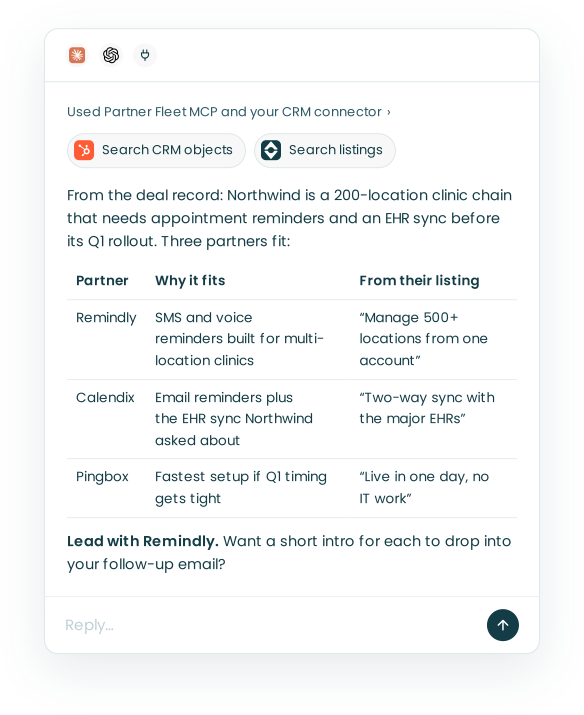
Use the Partner Fleet MCP alongside your CRM connector. Your AI tool reads the deal, searches your partner listings for what each partner actually does, and recommends who can help close it.
I have a call with Northwind Inc. tomorrow. Review the deal, then tell me which partners to suggest based on what Northwind needs.
Works with the AI tools you already use
The Partner Fleet MCP server is built on the Model Context Protocol (MCP), the open standard for connecting AI tools to outside software.

Claude
Connects to the Partner Fleet MCP as a custom connector.

ChatGPT
Connects to the Partner Fleet MCP as a custom connector.
Any MCP client
Any AI tool or agent that supports remote MCP servers.
The Partner Fleet MCP is included with Platform Enterprise and available as an add-on on other plans. It’s in beta now: customers can request access at support@partnerfleet.com, and prospects can see it in a demo.
How do you set up the Partner Fleet MCP?
Setup takes a few minutes and requires no engineering work.
1. Copy the URL
A Partner Fleet admin copies the MCP server URL from settings.
2. Add the connector
Your AI tool admin pastes it in as a custom connector.
3. Sign in and choose access
Each admin starts a new chat in their AI tool, signs in to Partner Fleet, and picks what the MCP can do.
4. Start working
Admins work on listings and applications from their AI chat.
You stay in control of every change
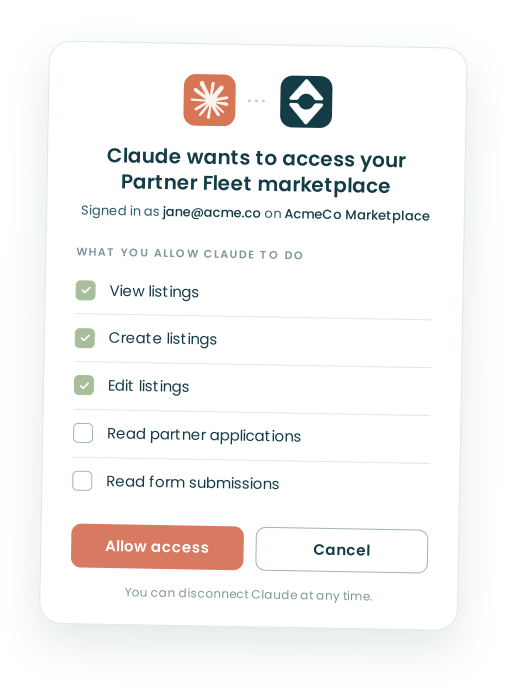
The Partner Fleet MCP works under each admin’s own login, does only what they allow, and never publishes, deletes, or approves anything on its own.
Admin login required.
Only Partner Fleet admins can connect. If someone loses admin access, their connection ends too.
Choose what the MCP can do.
At sign-in, each admin sets what the Partner Fleet MCP can read and write in your account.
Nothing gets deleted.
Nothing in your Partner Fleet account can be deleted or removed by the Partner Fleet MCP.
Human approval, built in.
When the MCP drafts or edits a listing, a person on your team approves it before it goes live.
Disconnect any time.
Anyone who connects the Partner Fleet MCP can disconnect it from their AI tool at any time.
See every connection.
Admins can see who connected each AI tool and when it was last used, so there’s a clear trail.
Questions teams ask about the Partner Fleet MCP
What can the Partner Fleet MCP read and change?
Which AI tools work with the Partner Fleet MCP?
Can the Partner Fleet MCP publish changes on its own?
Who can use the Partner Fleet MCP?
How long does the Partner Fleet MCP take to set up?
Connecting Claude or ChatGPT takes a few minutes and no engineering work: copy your server URL from Partner Fleet, add it as a connector, and sign in. Your AI tool’s admin may need to approve the connector first. The Partner Fleet MCP setup guide walks through connecting your AI tool.
How is the Partner Fleet MCP priced?
The Partner Fleet MCP is included with Platform Enterprise and available as an add-on on other plans. It’s in beta now: customers can request access at support@partnerfleet.com, and prospects can see it in a demo.
What doesn’t the Partner Fleet MCP do?
See the Partner Fleet MCP in action
Already a Partner Fleet customer? Email support@partnerfleet.com to join the beta.